Search Docs
Editing a loan
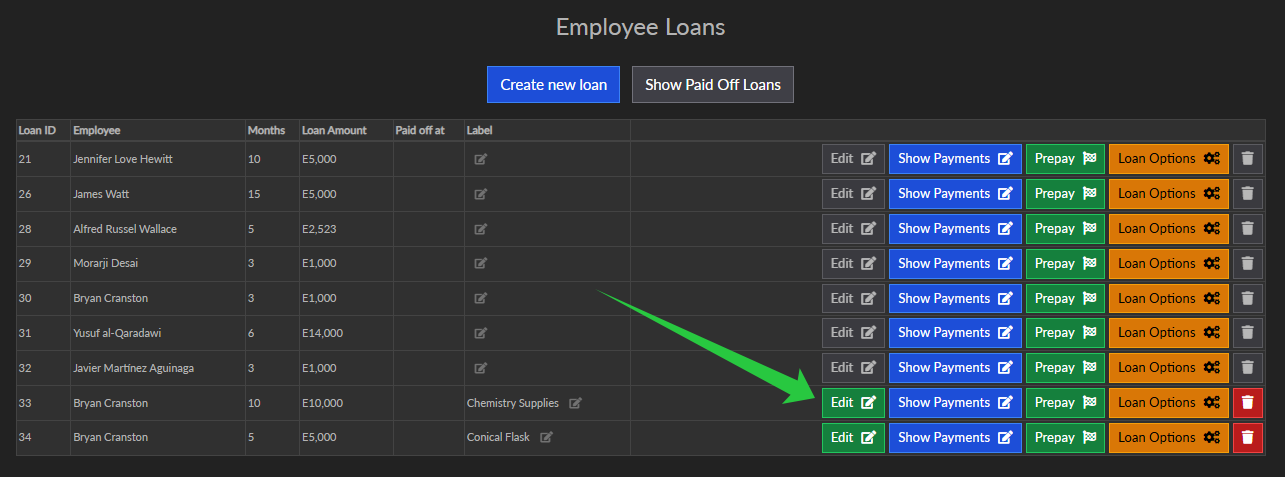
If the loan has not had any payments made against it you can edit it by clicking the green edit button.

Deleting a loan
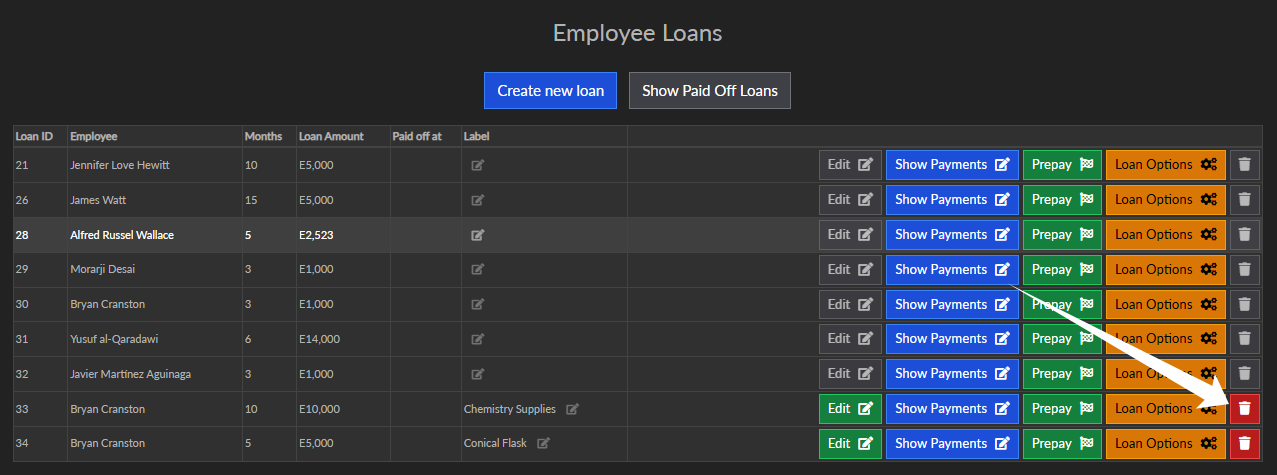
If the loan has not had any payments made against it you can delete it by clicking the red delete button.
Prepay a loan
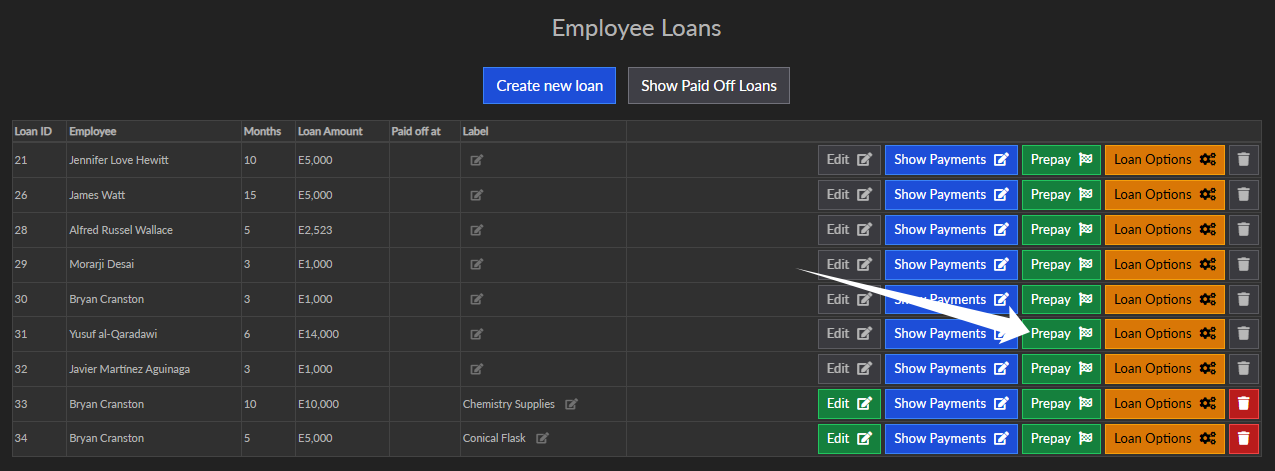
If an employee pays off the loan in full before the scheduled payments you can use the Prepay feature. This simply marks all payments as paid and stops deducting any more payments.
Write off a loan
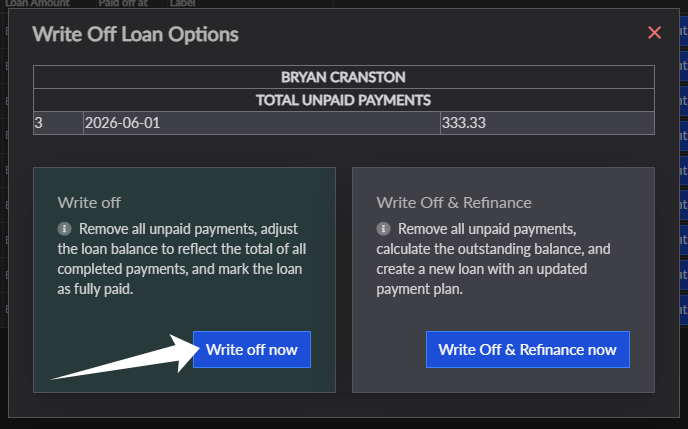
To remove all unpaid payments, adjust the loan balance to reflect the total of all completed payments, and mark the loan as fully paid:
- Click the orange "Loan Options " button
- Then click the blue "Write off now" button
Write off and refinance a loan
To take the sum of pending payments of an employee loan and combine them into a second loan use the Write off & Refinance option
- Click the orange "Loan Options " button
- Then click the blue "Write Off & Refinance now" button
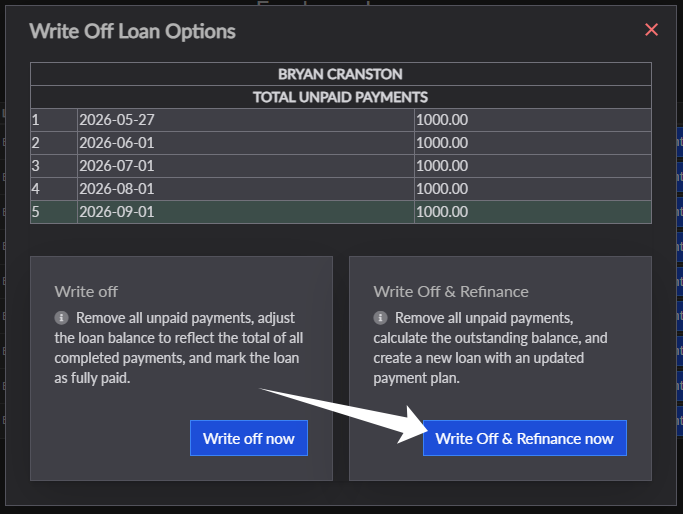
Please take not for using Write Off & Re-Finance
- Executing this action writes off existing loan payments and automatically populates the loan creation screen with the total of the written-off balance.
- To finalize the process, you must create a new loan entry by adding the additional loan amount to the prefilled sum from the written-off loan.